站点介绍
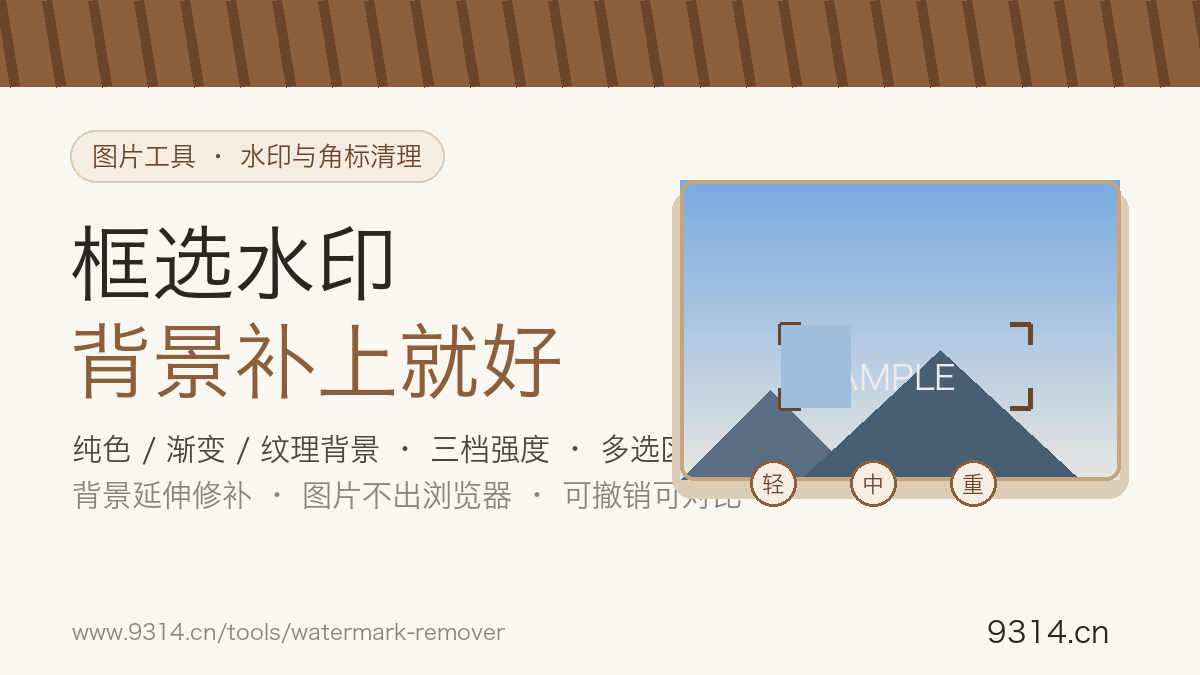
Stock photos land with a date stamp burned into the corner. Screenshots carry a supplier logo nobody asked for. Old scans have someone's initials in the frame. Small marks, deeply annoying — and I got tired of online removers that demand a login and return a smeared rectangle where the sky used to be. This page states what it can and cannot do on the label: background-stretch inpainting — box the mark, the surrounding background fills the hole.
It is about the background, not your luck. Marks on solid areas (sky, walls, water), gentle gradients and regular textures (wood, fabric) fill in tracelessly — the surrounding pixels carry all the information needed. Big translucent marks draped over faces, text or dense detail are another story: the real background underneath was destroyed when the mark was stamped, and no sampling brings it back. The result will smear. Do not believe one-click-perfection marketing; that either rides on luck or involves repainting. Test on a small box first, hold-compare, and undo freely.
Auto-finding the watermark sounds fancy and fails often: the boundary of a translucent mark is inherently fuzzy, so machine-drawn boxes routinely clip half the mark and leave a worse half-behind smear. This page hands the box to you — you know where the mark sits and what the background should look like better than any heuristic. Draw big or small; delete any box from the list and redraw.
It depends on the background. This page uses background-stretch inpainting: pixels around your selection are sampled and blended in, weighted by distance. Watermarks and date stamps on solid backgrounds (sky, walls, water), gentle gradients and regular textures (wood, fabric) come out essentially traceless. On the flip side, big translucent marks over faces, text or dense detail will look smeared after filling — the background information is simply gone. If you dislike a result, undo it; nothing compounds.
The sampling and blending range differs. Light samples right at the selection edge and keeps texture continuation truest — good for clean backgrounds. Heavy samples wider and adds a smoothing pass, covering the hardest marks (drop shadows, strong color contrast) at the cost of softer texture. Medium sits in between and is the default. When in doubt, try Medium, hold the Compare button, and undo-and-retry with another strength if it misses.
When the watermark hugs an image edge. Cropping the entire edge off leaves 100% original pixels — cleaner than any fill can be. Selections that touch an edge are detected automatically: the page hints that cropping is cleaner and pre-picks the edge. The image gets smaller by that strip; the size change is shown plainly. If your subject (person, text) is not near that edge, crop away.
Yes. Draw a box over each mark first (up to 12 selections, listed on the right), then press Apply once — all of them are processed in a single pass and a single timing. If one box is too small or too large, delete just that one in the list and redraw; no need to clear everything.
Yes — up to 10 undo steps, each redoable. Fills and crops record the exact pixels before and after, so undo is a pixel-exact restore, not an approximation. Once history overflows 10 steps the oldest entry drops off; to start over completely, reload the original with Load another image.
No. Decoding, filling, cropping and export all happen inside this device's browser — zero network requests, and the image itself is never written to local storage; close the tab and it is gone. Only your strength and mode preferences are kept in this browser's localStorage; the footer button clears them.
中文版:https://www.9314.cn/tools/watermark-remover/
相似站点
评论列表 (0条)