站点介绍
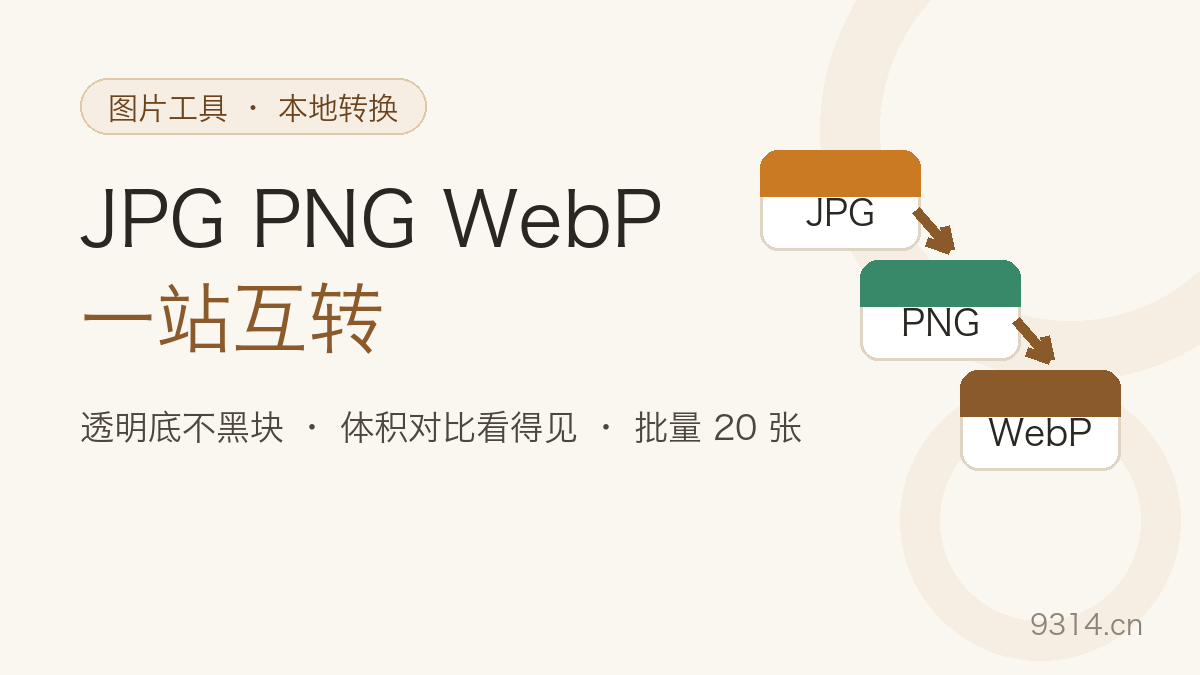
A client emails back: "the CMS only takes JPG". Another one wants everything under 200KB, which usually means WebP. And the logo you exported as transparent PNG needs to survive a slide deck that flattens transparency onto whatever color it pleases - usually black. That is a normal Tuesday for anyone who ships images to other people's systems.
This converter does all three jobs locally. Drop files in, tap a format, catch the results. Nothing is uploaded, nothing needs an account, and the whole thing runs on the Canvas decoder your browser already ships.
Decoding is the browser's job. The page hands your file to createImageBitmap, gets raw pixels back, paints them onto a canvas, and asks the canvas to encode itself as the target format via canvas.toBlob. No WASM decoder, no third-party library, no server round-trip - the same code path your browser uses when you right-click an image and save it.
One honest limitation of that pipeline: an animated GIF hands over only its first frame. The canvas has no concept of animation, so the output is a still. JPG, PNG and WebP are static formats anyway; if you need motion preserved, that is a different tool.
JPG has no alpha channel - none. Naive converters composite transparent pixels onto black, which is why logos sometimes come back looking like they were left in a photocopier overnight. This tool paints your chosen mat color onto the canvas first, then draws the image over it, so transparency becomes white or whatever you picked instead of black.
PNG and WebP keep transparency as a real alpha channel. The preview thumbnails sit on a checkerboard so you can see the transparent regions at a glance.
Every result card shows the original size, the output size, and the difference with a percentage. Converting a 192KB photo JPG to WebP at quality 85 typically lands around 50KB - the card reads "saves 142KB (74%)" and you know the trade before you download.
The reverse trip matters too. WebP or JPG to PNG usually grows the file, because PNG is lossless and stores every pixel exactly. The card tells you that as well ("gains 732KB, 1451%") instead of pretending everything always shrinks.
Start at 85 and look at the card. If the size still hurts, walk down to 70 - most photos survive 70 fine for web use. Below 50 you start seeing blocky edges in gradients (skies, bokeh). Go 90+ only for images you will edit again; for final web delivery that is wasted bytes.
Twenty files queue up and convert one at a time, which keeps memory flat - only one full-size canvas lives at any moment. A corrupt file marks its own card as failed and the queue moves on. The ZIP is assembled in-page using stored (uncompressed) entries: re-compressing already-compressed images burns CPU for roughly zero gain, so the archive just concatenates and checksums.
Apple ships HEIC by default to save space, and browsers refuse to decode it - it is not a codec question the page can work around. The practical fix: Settings, then Camera, then Formats, then Most Compatible, and your iPhone shoots plain JPG from then on. Photos already in HEIC need a dedicated HEIC converter first; this tool tells you that upfront instead of failing mysteriously.
Upload converters mean your photos transit somebody else's server, sit in a queue, and come back with a watermark unless you pay. Local conversion means the file never leaves the tab you are looking at. For anything with faces, addresses, or client work in it, that difference is the whole ballgame.
Because JPG as a format has no transparency channel. Tools that skip this step fill transparent pixels with black. This converter paints a base color first - white by default, or any custom color you pick - so the output never shows black patches. If you need transparency kept, convert to PNG or WebP instead; both formats support it natively.
Not directly. HEIC is an Apple-proprietary format and browsers do not decode it. On your iPhone, go to Settings, then Camera, then Formats, and pick Most Compatible - new photos will be JPG from then on. For HEIC shots you already have, run them through a dedicated HEIC-to-JPG converter first, then bring them here.
The default of 85 works for most photos: losses are nearly invisible and the file stays clearly smaller than maximum-quality output. For web pages where every kilobyte counts, try 60-75. For archives or images you plan to edit again, go 90 or higher. The slider only affects JPG and WebP; PNG is lossless and has no quality dial, so the slider disables itself automatically.
No. A browser canvas only takes the first frame of an animated image, so the output is a still picture - JPG, PNG and WebP are all static formats anyway. To keep animation, look for an animated-WebP or GIF tool; that is a different job and this tool does not pretend to do it.
Up to 20 files per batch, each up to 50MB. Files convert one by one, finished ones download immediately, and a single failure never blocks the rest. When the batch is done, grab everything as one ZIP. Extremely large resolutions beyond roughly 100 megapixels can hit browser canvas limits - the tool reports a clear error instead of handing you a broken file.
No. Decoding, converting and compressing all happen inside your browser on this device - no network request carries the image, and nothing is written to local storage. Only your format, quality and background preferences are kept in this browser so the page opens the way you left it. The Clear my data link in the footer removes them.
中文版:https://www.9314.cn/tools/image-convert/
相似站点
评论列表 (0条)

 "Image Converter: JPG, PNG, WebP - Free, Local, No Black Backgrounds")
 "照片 EXIF 清除:删掉 GPS 定位和相机信息再发图")
 "图片格式转换:JPG、PNG、WebP 互转,透明底不黑块")